
Getting Started with R Markdown (optional)
Last updated on 2026-06-30 | Edit this page
Overview
Questions
- What is R Markdown?
- How can I integrate my R code with text and plots?
- How can I convert .Rmd files to .html, .pdf, or .docx?
Objectives
- Create a .Rmd document containing R code, text, and plots
- Create a YAML header to control output
- Understand basic syntax of R Markdown
- Customize code chunks to control formatting
- Use code chunks and in-line code to create dynamic, reproducible documents
R Markdown
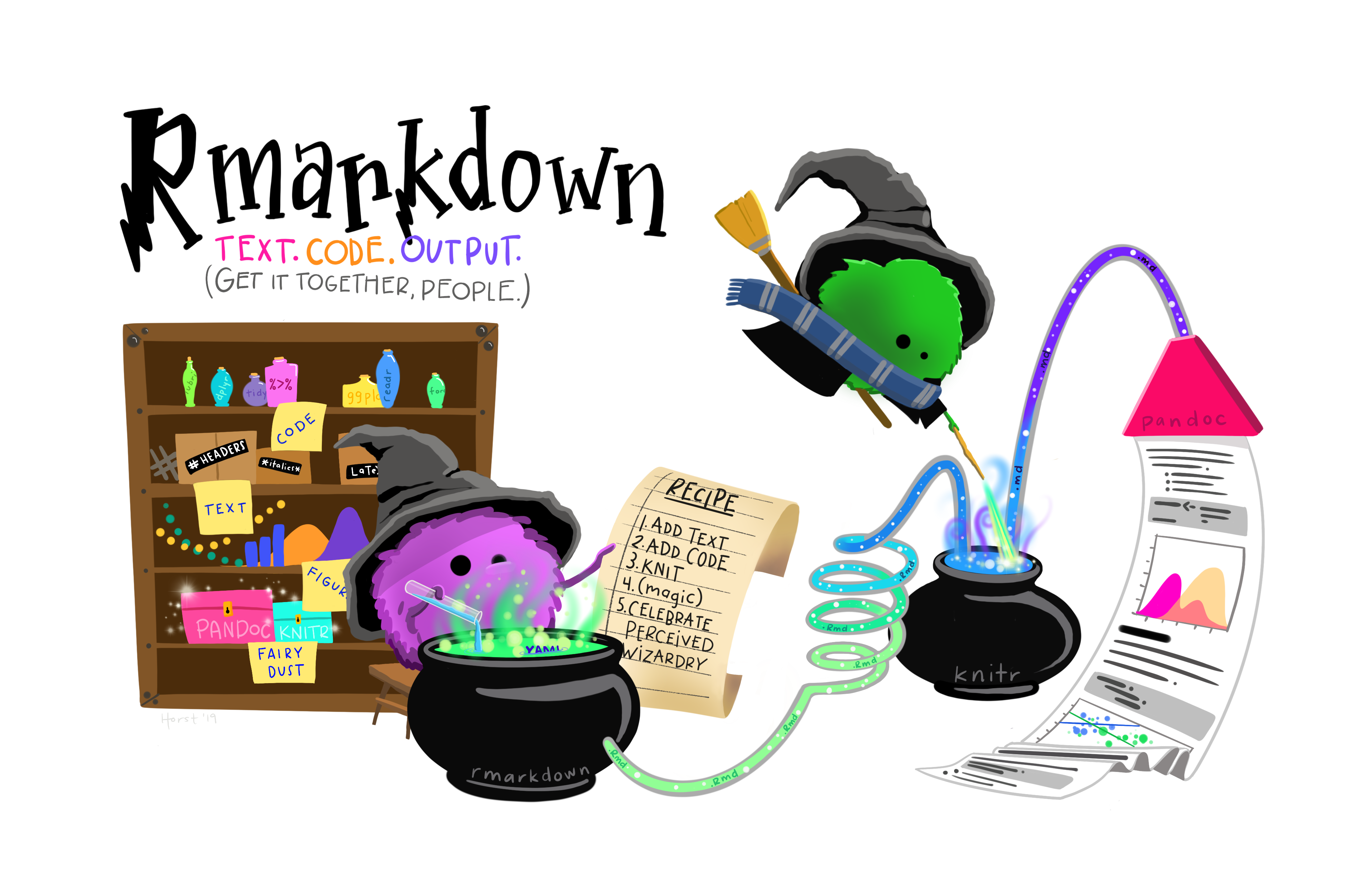
R Markdown is a flexible type of document that allows you to seamlessly combine executable R code (and its output) with text and images in a single document. These documents can be readily converted to multiple static and dynamic output formats, including PDF (.pdf), Word (.docx), and HTML (.html).
The benefit of a well-prepared R Markdown document is full reproducibility! This also means that, if you notice a data transcription error or you are able to add more data to your analysis, you will be able to recompile the report without making any changes in the actual document.
The rmarkdown package comes pre-installed with RStudio, so no action is necessary to begin using R Markdown documents.
Creating an R Markdown File
To create a new R Markdown document in RStudio, click File -> New File -> R Markdown:
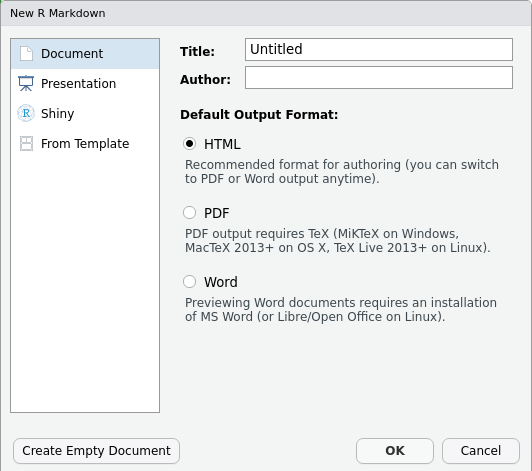
Then, click on ‘Create Empty Document’ to generate your R Markdown file.
In practice, you can enter the title of your document, your name (Author), and select the type of output. However, in this lesson, we will be learning how to start from a blank document.
Basic Components of R Markdown
To control the output, a YAML header is needed. YAML (which stands for YAML Ain’t Markup Language) is a human-readable serialization language that helps with the configuration of files!
An example of a YAML header can be seen below:
---
title: "My Awesome Report"
author: "Emmet Brickowski"
date: ""
output: html_document
---
In R Markdown, the header is defined by the three hyphens at the
beginning (---) and the three hyphens at the end
(---).
Within this header, the only required field is the
output, which specifies the type of output you want. This
can be an html_document, a pdf_document, or a
word_document. We will start with an HTML document and
discuss the other options later.
Since the other fields are not required, you can delete them if they are unneeded!
To begin the body of your document, start typing after the end of the
YAML header (i.e. after the second ---).
Markdown Syntax
Markdown is a popular markup language that allows you to add
formatting elements to text, such as bold,
italics, and code. However, the formatting will
not be immediately visible in your markdown (.md) document, like you
would see in a Word document. Rather, Markdown syntax applied to text
within your file is converted into formatted elements upon
output. Markdown is useful because it is lightweight, flexible, and
platform independent.
Some platforms provide a real time preview of the formatting, like RStudio’s visual markdown editor (available from version 1.4).
First, let’s create a heading! A # in front of text
indicates to Markdown that this text is a heading. Adding more
#s make the heading smaller, i.e. one # is a
first level heading, two ##s is a second level heading,
etc. This can be repeated up until the 6th level heading.
# Title
## Section
### Sub-section
#### Sub-sub section
##### Sub-sub-sub section
###### Sub-sub-sub-sub section
Please note that you should only use a level if the one above it is
also in use! For example, you should not create a header using
#### unless headers at ### and all
higher levels are present earlier in the document.
Since we have already defined our title in the YAML header, we will use a section heading to create an Introduction section.
## IntroductionYou can make things bold by surrounding the word
with double asterisks, **bold**, or double underscores,
__bold__. Italics can be applied using single
asterisks, *italics*, or single underscores,
_italics_.
You can also combine bold and italics to
write something really important with
triple-asterisks, ***really***, or underscores,
___really___. If you’re feeling bold (pun intended), you
can also use a combination of asterisks and underscores,
**_really_**, *__really__*.
To create code-type font, surround the word with
back-ticks, `code-type`.
Now, let’s apply everything we’ve learned about markdown syntax thus far:
## Introduction

This report uses the **tidyverse** package along with the *Check-In* Dataset,
which has columns that include:
Then we can create a list for the variables using -,
+, or * keys.
## Introduction

This report uses the **tidyverse** package along with the *Check-In* Dataset,
which has columns that include:

- checkin\_id
- checkin\_length
- checkin\_time
- location
- precinct
- device
You can also create an ordered list using numbers:
1. checkin\_id
2 checkin\_length
3. checkin\_time
4. location
5. precinct
6. device
And nested items by tab-indenting:
- checkin\_id
  + Unique key/ID for each ballot instance
- checkin\_length
  + Number of seconds it took for the person submitting the ballot to check-in
- checkin\_time
  + Arrival time of the person submitting the ballot
- location
  + Anonymized ID for the location of the ballot box
- precinct
  + Anonymized ID for the precinct that the ballot box belongs to
- device
  + Anonymized ID for each ballot box
For more Markdown syntax see the following reference guide.
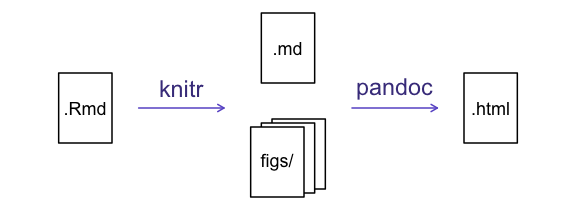
To render your document into HTML, click the Knit button at the top of the Source panel (top left), or use the keyboard shortcut Ctrl+Shift+K for Windows and Linux or Cmd+Shift+K for Mac. If you haven’t saved the document yet, you will be prompted to do so when you Knit for the first time.
Writing an R Markdown Report
Next, we will add some R code from our previous data wrangling and visualization, which means we need to make sure tidyverse is loaded. However, it is no longer enough to just load tidyverse from the console – when working with R Markdown, you must ensure any necessary packages are loaded within the document itself. The same applies to our data. To do so, we will need to create a ‘code chunk’ at the top of our document (below the YAML header).
A code chunk can be inserted by clicking Code -> Insert Chunk, or by using the keyboard shortcuts Ctrl+Alt+I for Windows and Linux or Cmd+Option+I for Mac.
The syntax of a code chunk is:
An R Markdown document knows that this text is not part of the report
from the ``` that begins and ends the chunk. It also knows
that the code inside of the chunk is written in R from the
r inside of the curly braces ({}). After the
r, you can add a name for the code chunk. Naming a chunk is
optional, but recommended for organizational purposes. When naming
chunks, each chunk name must be unique, and only contain alphanumeric
characters and -.
To load tidyverse and our
checkin_data.csv file, we will insert a chunk and call it
‘setup’. Since we don’t want this code or the output to show in our
knitted HTML document, we add an include = FALSE option
after the code chunk name ({r setup, include = FALSE}).
MARKDOWN
```{r setup, include = FALSE}
#loads in the tidyverse and here packages
library(tidyverse)
library(here)

#reads in data and assigns it to the 'data' variable using 'here'
data <- read_csv(here("data", "checkin_data.csv"))
```Important Note!
The file paths you give in a .Rmd document, e.g. to load a .csv file, are relative to the .Rmd document, not the project root.
As suggested in the Starting with Data episode, we highly recommend
the use of the here() function to keep the file paths
consistent within your project.
Insert Table
Next, we will re-create a table from the Data Wrangling episode which
shows the total number of check-ins grouped by precinct. We
can do this by creating a new code chunk and calling it ‘anon-tbl’.
Alternatively, you can come up with something more creative (just
remember to stick to the naming rules).
When writing code chunks, unlike text, it isn’t necessary to Knit your document every time you want to see the output. Instead you can run the code chunk with the green triangle in the top right corner of the the chunk, or by using the keyboard shortcuts Ctrl+Alt+C for Windows and Linux or Cmd+Option+C for Mac.
To make sure the table is formatted nicely in our output document, we
will need to use the kable() function from the
knitr package. The kable() function takes
the output of your R code and knits it into a nice looking HTML table.
You can also specify different aspects of the table (i.e., the column
names or the caption).
Run the code chunk below to ensure you get the desired output:
R
data %>%
  group_by(precinct) %>%
  summarize(total_checkins = n()) %>%
  arrange(desc(total_checkins)) %>%
  knitr::kable(caption = "We can also add a caption.",
               col.names = c("Precinct",
                             "Total Check-Ins"))
| Precinct | Total Check-Ins |
|---|---|
| PRECINCT_219 | 1968 |
| PRECINCT_016 | 1807 |
| PRECINCT_271 | 1798 |
| PRECINCT_317 | 1731 |
| PRECINCT_358 | 1717 |
| PRECINCT_239 | 1705 |
| PRECINCT_199 | 1700 |
| PRECINCT_323 | 1695 |
| PRECINCT_106 | 1680 |
| PRECINCT_045 | 1671 |
| PRECINCT_008 | 1652 |
| PRECINCT_051 | 1652 |
| PRECINCT_046 | 1640 |
| PRECINCT_133 | 1640 |
| PRECINCT_408 | 1636 |
| PRECINCT_119 | 1633 |
| PRECINCT_254 | 1630 |
| PRECINCT_242 | 1628 |
| PRECINCT_047 | 1621 |
| PRECINCT_386 | 1617 |
| PRECINCT_315 | 1611 |
| PRECINCT_367 | 1607 |
| PRECINCT_307 | 1600 |
| PRECINCT_215 | 1598 |
| PRECINCT_134 | 1592 |
| PRECINCT_294 | 1585 |
| PRECINCT_136 | 1584 |
| PRECINCT_340 | 1584 |
| PRECINCT_376 | 1583 |
| PRECINCT_387 | 1580 |
| PRECINCT_309 | 1568 |
| PRECINCT_246 | 1565 |
| PRECINCT_319 | 1564 |
| PRECINCT_105 | 1561 |
| PRECINCT_395 | 1554 |
| PRECINCT_306 | 1550 |
| PRECINCT_027 | 1539 |
| PRECINCT_251 | 1527 |
| PRECINCT_210 | 1519 |
| PRECINCT_211 | 1507 |
| PRECINCT_308 | 1507 |
| PRECINCT_146 | 1500 |
| PRECINCT_039 | 1489 |
| PRECINCT_161 | 1483 |
| PRECINCT_266 | 1479 |
| PRECINCT_262 | 1478 |
| PRECINCT_258 | 1475 |
| PRECINCT_297 | 1470 |
| PRECINCT_324 | 1466 |
| PRECINCT_263 | 1464 |
| PRECINCT_179 | 1459 |
| PRECINCT_200 | 1459 |
| PRECINCT_035 | 1448 |
| PRECINCT_022 | 1436 |
| PRECINCT_235 | 1432 |
| PRECINCT_335 | 1427 |
| PRECINCT_256 | 1417 |
| PRECINCT_177 | 1415 |
| PRECINCT_121 | 1402 |
| PRECINCT_398 | 1402 |
| PRECINCT_217 | 1392 |
| PRECINCT_018 | 1380 |
| PRECINCT_193 | 1380 |
| PRECINCT_084 | 1370 |
| PRECINCT_158 | 1360 |
| PRECINCT_196 | 1358 |
| PRECINCT_204 | 1352 |
| PRECINCT_007 | 1347 |
| PRECINCT_225 | 1344 |
| PRECINCT_150 | 1336 |
| PRECINCT_066 | 1334 |
| PRECINCT_044 | 1332 |
| PRECINCT_128 | 1328 |
| PRECINCT_070 | 1317 |
| PRECINCT_320 | 1317 |
| PRECINCT_282 | 1314 |
| PRECINCT_303 | 1314 |
| PRECINCT_237 | 1313 |
| PRECINCT_336 | 1306 |
| PRECINCT_399 | 1306 |
| PRECINCT_036 | 1291 |
| PRECINCT_117 | 1278 |
| PRECINCT_178 | 1278 |
| PRECINCT_236 | 1268 |
| PRECINCT_412 | 1268 |
| PRECINCT_331 | 1265 |
| PRECINCT_050 | 1262 |
| PRECINCT_124 | 1251 |
| PRECINCT_096 | 1246 |
| PRECINCT_109 | 1246 |
| PRECINCT_037 | 1241 |
| PRECINCT_280 | 1236 |
| PRECINCT_157 | 1232 |
| PRECINCT_371 | 1232 |
| PRECINCT_290 | 1225 |
| PRECINCT_375 | 1220 |
| PRECINCT_404 | 1219 |
| PRECINCT_216 | 1212 |
| PRECINCT_054 | 1211 |
| PRECINCT_356 | 1203 |
| PRECINCT_041 | 1201 |
| PRECINCT_126 | 1199 |
| PRECINCT_328 | 1198 |
| PRECINCT_332 | 1198 |
| PRECINCT_351 | 1188 |
| PRECINCT_065 | 1187 |
| PRECINCT_195 | 1187 |
| PRECINCT_125 | 1185 |
| PRECINCT_406 | 1183 |
| PRECINCT_055 | 1179 |
| PRECINCT_098 | 1179 |
| PRECINCT_048 | 1174 |
| PRECINCT_339 | 1173 |
| PRECINCT_038 | 1171 |
| PRECINCT_139 | 1170 |
| PRECINCT_191 | 1168 |
| PRECINCT_011 | 1167 |
| PRECINCT_014 | 1161 |
| PRECINCT_270 | 1154 |
| PRECINCT_110 | 1149 |
| PRECINCT_118 | 1130 |
| PRECINCT_153 | 1127 |
| PRECINCT_015 | 1125 |
| PRECINCT_097 | 1122 |
| PRECINCT_341 | 1122 |
| PRECINCT_257 | 1119 |
| PRECINCT_281 | 1114 |
| PRECINCT_052 | 1109 |
| PRECINCT_318 | 1109 |
| PRECINCT_255 | 1105 |
| PRECINCT_159 | 1102 |
| PRECINCT_396 | 1101 |
| PRECINCT_333 | 1096 |
| PRECINCT_174 | 1092 |
| PRECINCT_312 | 1091 |
| PRECINCT_079 | 1090 |
| PRECINCT_353 | 1089 |
| PRECINCT_269 | 1082 |
| PRECINCT_220 | 1079 |
| PRECINCT_067 | 1074 |
| PRECINCT_230 | 1063 |
| PRECINCT_137 | 1062 |
| PRECINCT_160 | 1056 |
| PRECINCT_033 | 1054 |
| PRECINCT_313 | 1050 |
| PRECINCT_260 | 1047 |
| PRECINCT_187 | 1042 |
| PRECINCT_206 | 1040 |
| PRECINCT_129 | 1036 |
| PRECINCT_203 | 1028 |
| PRECINCT_296 | 1028 |
| PRECINCT_029 | 1026 |
| PRECINCT_377 | 1023 |
| PRECINCT_081 | 1022 |
| PRECINCT_080 | 1021 |
| PRECINCT_221 | 1006 |
| PRECINCT_154 | 1002 |
| PRECINCT_415 | 998 |
| PRECINCT_394 | 995 |
| PRECINCT_325 | 992 |
| PRECINCT_115 | 991 |
| PRECINCT_321 | 988 |
| PRECINCT_085 | 987 |
| PRECINCT_184 | 986 |
| PRECINCT_064 | 982 |
| PRECINCT_370 | 981 |
| PRECINCT_202 | 979 |
| PRECINCT_299 | 977 |
| PRECINCT_310 | 976 |
| PRECINCT_201 | 974 |
| PRECINCT_420 | 963 |
| PRECINCT_021 | 956 |
| PRECINCT_114 | 954 |
| PRECINCT_241 | 954 |
| PRECINCT_194 | 944 |
| PRECINCT_316 | 943 |
| PRECINCT_397 | 943 |
| PRECINCT_059 | 942 |
| PRECINCT_053 | 941 |
| PRECINCT_049 | 939 |
| PRECINCT_143 | 934 |
| PRECINCT_075 | 932 |
| PRECINCT_168 | 926 |
| PRECINCT_298 | 925 |
| PRECINCT_349 | 915 |
| PRECINCT_381 | 910 |
| PRECINCT_197 | 908 |
| PRECINCT_166 | 904 |
| PRECINCT_372 | 904 |
| PRECINCT_123 | 890 |
| PRECINCT_083 | 889 |
| PRECINCT_288 | 885 |
| PRECINCT_010 | 882 |
| PRECINCT_068 | 882 |
| PRECINCT_017 | 875 |
| PRECINCT_207 | 873 |
| PRECINCT_127 | 872 |
| PRECINCT_337 | 868 |
| PRECINCT_283 | 866 |
| PRECINCT_327 | 861 |
| PRECINCT_393 | 858 |
| PRECINCT_107 | 856 |
| PRECINCT_140 | 854 |
| PRECINCT_116 | 853 |
| PRECINCT_390 | 853 |
| PRECINCT_131 | 851 |
| PRECINCT_348 | 849 |
| PRECINCT_132 | 845 |
| PRECINCT_354 | 845 |
| PRECINCT_164 | 844 |
| PRECINCT_095 | 843 |
| PRECINCT_209 | 838 |
| PRECINCT_359 | 831 |
| PRECINCT_248 | 820 |
| PRECINCT_169 | 819 |
| PRECINCT_058 | 816 |
| PRECINCT_076 | 816 |
| PRECINCT_198 | 815 |
| PRECINCT_181 | 810 |
| PRECINCT_378 | 810 |
| PRECINCT_003 | 806 |
| PRECINCT_023 | 797 |
| PRECINCT_025 | 796 |
| PRECINCT_069 | 796 |
| PRECINCT_234 | 795 |
| PRECINCT_267 | 791 |
| PRECINCT_144 | 785 |
| PRECINCT_322 | 783 |
| PRECINCT_130 | 776 |
| PRECINCT_224 | 766 |
| PRECINCT_416 | 766 |
| PRECINCT_329 | 764 |
| PRECINCT_005 | 762 |
| PRECINCT_352 | 762 |
| PRECINCT_142 | 761 |
| PRECINCT_012 | 759 |
| PRECINCT_120 | 757 |
| PRECINCT_314 | 748 |
| PRECINCT_102 | 743 |
| PRECINCT_009 | 742 |
| PRECINCT_250 | 738 |
| PRECINCT_013 | 737 |
| PRECINCT_024 | 734 |
| PRECINCT_108 | 734 |
| PRECINCT_057 | 733 |
| PRECINCT_113 | 732 |
| PRECINCT_228 | 731 |
| PRECINCT_149 | 728 |
| PRECINCT_391 | 727 |
| PRECINCT_073 | 724 |
| PRECINCT_071 | 708 |
| PRECINCT_231 | 701 |
| PRECINCT_185 | 691 |
| PRECINCT_034 | 682 |
| PRECINCT_138 | 682 |
| PRECINCT_145 | 682 |
| PRECINCT_304 | 680 |
| PRECINCT_006 | 676 |
| PRECINCT_369 | 669 |
| PRECINCT_172 | 663 |
| PRECINCT_030 | 662 |
| PRECINCT_183 | 660 |
| PRECINCT_155 | 652 |
| PRECINCT_001 | 648 |
| PRECINCT_233 | 648 |
| PRECINCT_243 | 643 |
| PRECINCT_188 | 639 |
| PRECINCT_364 | 638 |
| PRECINCT_028 | 633 |
| PRECINCT_111 | 621 |
| PRECINCT_212 | 621 |
| PRECINCT_213 | 614 |
| PRECINCT_026 | 604 |
| PRECINCT_060 | 601 |
| PRECINCT_094 | 592 |
| PRECINCT_170 | 585 |
| PRECINCT_208 | 581 |
| PRECINCT_223 | 581 |
| PRECINCT_344 | 580 |
| PRECINCT_141 | 578 |
| PRECINCT_350 | 573 |
| PRECINCT_063 | 571 |
| PRECINCT_182 | 571 |
| PRECINCT_122 | 570 |
| PRECINCT_086 | 565 |
| PRECINCT_273 | 562 |
| PRECINCT_252 | 560 |
| PRECINCT_388 | 556 |
| PRECINCT_278 | 555 |
| PRECINCT_151 | 553 |
| PRECINCT_368 | 552 |
| PRECINCT_384 | 547 |
| PRECINCT_343 | 546 |
| PRECINCT_186 | 543 |
| PRECINCT_409 | 540 |
| PRECINCT_087 | 536 |
| PRECINCT_259 | 530 |
| PRECINCT_249 | 528 |
| PRECINCT_240 | 527 |
| PRECINCT_289 | 520 |
| PRECINCT_287 | 513 |
| PRECINCT_347 | 511 |
| PRECINCT_311 | 504 |
| PRECINCT_072 | 498 |
| PRECINCT_407 | 493 |
| PRECINCT_192 | 490 |
| PRECINCT_104 | 489 |
| PRECINCT_295 | 482 |
| PRECINCT_214 | 479 |
| PRECINCT_245 | 478 |
| PRECINCT_305 | 477 |
| PRECINCT_247 | 473 |
| PRECINCT_103 | 469 |
| PRECINCT_004 | 466 |
| PRECINCT_366 | 463 |
| PRECINCT_226 | 462 |
| PRECINCT_147 | 459 |
| PRECINCT_402 | 459 |
| PRECINCT_162 | 457 |
| PRECINCT_284 | 454 |
| PRECINCT_019 | 444 |
| PRECINCT_293 | 443 |
| PRECINCT_156 | 441 |
| PRECINCT_152 | 439 |
| PRECINCT_077 | 429 |
| PRECINCT_100 | 415 |
| PRECINCT_279 | 412 |
| PRECINCT_135 | 406 |
| PRECINCT_165 | 404 |
| PRECINCT_099 | 403 |
| PRECINCT_090 | 397 |
| PRECINCT_264 | 397 |
| PRECINCT_218 | 396 |
| PRECINCT_276 | 393 |
| PRECINCT_413 | 386 |
| PRECINCT_383 | 385 |
| PRECINCT_338 | 373 |
| PRECINCT_361 | 371 |
| PRECINCT_362 | 367 |
| PRECINCT_405 | 363 |
| PRECINCT_190 | 362 |
| PRECINCT_418 | 362 |
| PRECINCT_373 | 359 |
| PRECINCT_040 | 356 |
| PRECINCT_093 | 348 |
| PRECINCT_392 | 342 |
| PRECINCT_400 | 339 |
| PRECINCT_173 | 333 |
| PRECINCT_379 | 324 |
| PRECINCT_082 | 321 |
| PRECINCT_163 | 320 |
| PRECINCT_285 | 320 |
| PRECINCT_232 | 313 |
| PRECINCT_286 | 296 |
| PRECINCT_277 | 295 |
| PRECINCT_222 | 288 |
| PRECINCT_301 | 284 |
| PRECINCT_275 | 280 |
| PRECINCT_291 | 279 |
| PRECINCT_238 | 274 |
| PRECINCT_385 | 265 |
| PRECINCT_389 | 259 |
| PRECINCT_002 | 257 |
| PRECINCT_357 | 248 |
| PRECINCT_148 | 244 |
| PRECINCT_380 | 243 |
| PRECINCT_302 | 241 |
| PRECINCT_342 | 234 |
| PRECINCT_330 | 232 |
| PRECINCT_417 | 232 |
| PRECINCT_032 | 227 |
| PRECINCT_268 | 224 |
| PRECINCT_374 | 220 |
| PRECINCT_363 | 218 |
| PRECINCT_346 | 213 |
| PRECINCT_300 | 212 |
| PRECINCT_265 | 207 |
| PRECINCT_334 | 206 |
| PRECINCT_074 | 190 |
| PRECINCT_043 | 189 |
| PRECINCT_167 | 187 |
| PRECINCT_205 | 184 |
| PRECINCT_410 | 184 |
| PRECINCT_401 | 180 |
| PRECINCT_229 | 179 |
| PRECINCT_089 | 178 |
| PRECINCT_112 | 171 |
| PRECINCT_365 | 171 |
| PRECINCT_274 | 169 |
| PRECINCT_326 | 167 |
| PRECINCT_078 | 150 |
| PRECINCT_244 | 148 |
| PRECINCT_056 | 143 |
| PRECINCT_061 | 142 |
| PRECINCT_088 | 140 |
| PRECINCT_171 | 124 |
| PRECINCT_176 | 124 |
| PRECINCT_292 | 111 |
| PRECINCT_020 | 109 |
| PRECINCT_091 | 102 |
| PRECINCT_180 | 101 |
| PRECINCT_261 | 101 |
| PRECINCT_382 | 101 |
| PRECINCT_272 | 98 |
| PRECINCT_419 | 89 |
| PRECINCT_042 | 78 |
| PRECINCT_062 | 75 |
| PRECINCT_189 | 70 |
| PRECINCT_227 | 70 |
| PRECINCT_403 | 68 |
| PRECINCT_414 | 68 |
| PRECINCT_031 | 66 |
| PRECINCT_175 | 64 |
| PRECINCT_355 | 60 |
| PRECINCT_253 | 58 |
| PRECINCT_101 | 43 |
| PRECINCT_345 | 42 |
| PRECINCT_411 | 37 |
| PRECINCT_360 | 11 |
| PRECINCT_092 | 2 |
Many different R packages can be used to generate tables. Some of the more commonly used options are listed in the table below:
| Name | Creator(s) | Description |
|---|---|---|
| condformat | Oller Moreno (2022) | Allows for the application and visualization of conditional formatting to data frames using defined criteria. |
| DT | Xie et al. (2023) | By using the JavaScript library ‘DataTables’ (included within the library), data objects can be rendered as HTML tables via R Markdown or Shiny. |
| formattable | Ren and Russell (2021) | Provides functions that create “formattable” vectors and data frames. Formattable vectors are displayed with text formatting, while formattable data frames use HTML to enhance the readability when rendered on web pages. |
| flextable | Gohel and Skintzos (2023) | Assists in the creation and customization of tables for reporting and publication purposes. The following formats are supported: ‘HTML’, ‘PDF’, ‘RTF’, ‘Microsoft Word’, ‘Microsoft PowerPoint’ and R ‘Grid Graphics’. ‘R Markdown’, ‘Quarto’, and the package ‘officer’ can be used to produce files with results. |
| gt | Iannone et al. (2022) | Builds display tables from tabular data. Within this package, tables are constructed using a set of cohesive table parts. Table values can be formatted using any of the included formatting functions. |
| huxtable | Hugh-Jones (2022) | Creates styled tables for data presentation. These tables can be exported to HTML, LaTeX, RTF, ‘Word’, ‘Excel’, and ‘PowerPoint’. Using this package, you can manipulate borders, size, position, captions, colors, text styles and number formatting. |
| pander | Daróczi and Tsegelskyi (2022) | Includes functions that catch all messages, ‘stdout’ and other useful information while evaluating R code. It also provides helpers to return user-specified text elements (e.g., header, paragraph, table, image, lists, etc.), or several types of R objects similarly automatically transformed to markdown format, in ‘pandoc’ markdown. |
| pixiedust | Nutter and Kretch (2021) | Provides tidy data frames with a programming interface intended to be similar to ’ggplot2’s system of layers, allowing fine-tuned control over each cell of the table. |
| reactable | Lin et al. (2023) | Creates interactive data tables for R based on the ‘React Table’ JavaScript library. Provides an HTML widget that can be used in ‘R Markdown’ or ‘Quarto’ documents, ‘Shiny’ applications, or viewed from an R console. |
| rhandsontable | Owen et al. (2021) | Provides an R interface to the ‘Handsontable’ JavaScript library (a minimalist Excel-like data grid editor). |
| stargazer | Hlavac (2022) | Generates LaTeX code, HTML/CSS code and ASCII text for well-formatted tables that display regression analysis results from multiple models side-by-side, along with summary statistics. |
| tables | Murdoch (2022) | Computes and displays complex tables of summary statistics. Output can be in LaTeX, HTML, plain text, or an R matrix for further processing. |
| tangram | Garbett et al. (2023) | Provides a flexible formula system to create production quality tables quickly and easily. The processing steps include a formula parser, statistical content generation from data defined by a formula, and table rendering. |
| xtable | Dahl et al. (2019) | Coerces data to LaTeX and HTML tables. |
| ztable | Moon (2021) | Makes zebra-striped tables (tables with alternating row colors) in LaTeX and HTML formats using data.frame, matrix, lm, aov, anova, glm, coxph, nls, fitdistr, mytable and cbind.mytable objects. |
Customizing Chunk Output
Earlier, we mentioned using include = FALSE in a code
chunk to prevent the code and output from printing in the knitted
document. There are additional options available to customize how the
code-chunks are presented in the output document. The options are
entered in the code chunk after chunk-name and separated by
commas, e.g. {r chunk-name, eval = FALSE, echo = TRUE}.
| Option | Options | Output |
|---|---|---|
eval |
TRUE or FALSE
|
Whether or not the code within the code chunk should be run. |
echo |
TRUE or FALSE
|
Choose if you want to show your code chunk in the output document.
echo = TRUE will show the code chunk. |
include |
TRUE or FALSE
|
Choose if the output of a code chunk should be included in the
document. FALSE means that your code will run, but will not
show up in the document. |
warning |
TRUE or FALSE
|
Whether or not you want your output document to display potential warning messages produced by your code. |
message |
TRUE or FALSE
|
Whether or not you want your output document to display potential messages produced by your code. |
fig.align |
default, left, right,
center
|
Where the figure from your R code chunk should be output on the page |
Tip
- The default settings for the above chunk options are all
TRUE. - The default settings can be modified per chunk, or with
knitr::opts_chunk$set()(i.e., enteringknitr::opts_chunk$set(echo = FALSE)will change the default of value ofechotoFALSEfor every code chunk in the document).
Exercise
Play around with the different options in the chunk with the code for the table, and re-Knit to see what each option does to the output.
What happens if you use eval = FALSE and
echo = FALSE? What is the difference between this and
include = FALSE?
Chunk 1:
MARKDOWN
```{r eval = FALSE, echo = FALSE}
data %>%
  group_by(precinct) %>%
  summarize(total_checkins = n()) %>%
  arrange(desc(total_checkins)) %>%
  knitr::kable(caption = "We can also add a caption.",
               col.names = c("Precinct",
                             "Total Check-Ins"))
```
Chunk 2:
MARKDOWN
```{r include = FALSE}
data %>%
  group_by(precinct) %>%
  summarize(total_checkins = n()) %>%
  arrange(desc(total_checkins)) %>%
  knitr::kable(caption = "We can also add a caption.",
               col.names = c("Precinct",
                             "Total Check-Ins"))
```-
eval = FALSEandecho = FALSEwill neither run the code in the chunk, nor show the code in the knitted document. The code chunk essentially doesn’t exist in the knitted document! -
include = FALSEwill not display the code nor the output, but it will be ran, with the output stored for later use!
In-Line R Code
Now we will use some in-line R code to present some descriptive
statistics. To use in-line R-code, we use the same back-ticks that we
used in the Markdown section, with an r to specify that we
are generating R-code. The difference between in-line code and a code
chunk is the number of back-ticks. In-line R code uses one back-tick
(`r`), whereas code chunks use three back-ticks
(```r```).
For example, today’s date is `r Sys.Date()`, will be
rendered as: today’s date is 2026-06-30. The code will display today’s
date in the output document (or, technically, the date the document was
last knitted).
The best way to use in-line R code is by preparing the output in code chunks, minimizing the code needed to produce the output. For example, let’s say we’re interested in presenting the total check-ins for a specific precinct.
We can run the below code to create the total_2866 object, making future in-line R code much easier to write:
R
#create a summary tibble with the total check-ins per precinct
df <- data %>%
      group_by(precinct) %>%
      summarize(total_checkins = n())

#select the precinct we want to use
total_2866 <- df %>%
              filter(precinct == "2866")
Now we can make an informative statement on the counts of each precinct, and include the total values as in-line R-code. For example:
The total check-ins at precinct 2866 is
`r total_2866$total_checkins`
becomes…
The total check-ins at precinct 2866 is .
Because we are using in-line R code instead of the actual values, we have created a dynamic document that will automatically update if we make changes to the data set and/or code chunks.
Plots
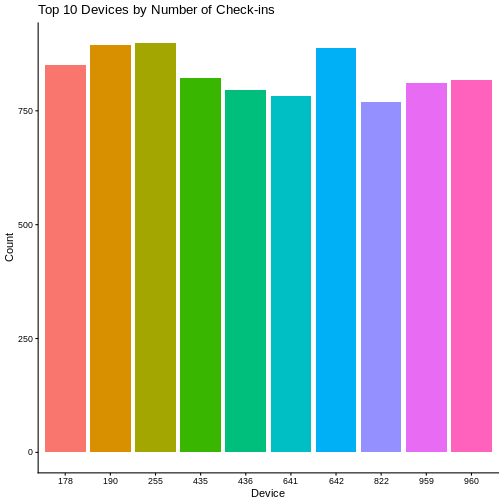
Finally, our last addition to our document will be a plot from the Data Visualization lesson!
Exercise
Create a new code chunk for the plot, and copy the code from any of the plots we created in the previous episode to produce a plot in the chunk.
If you are feeling adventurous, you can also create a new plot using
the data tibble.
R
#retrieve top devices
top_devices <- data %>%
  count(device) %>%
  top_n(10, n) %>%
  pull(device)

#create plot
data %>%
  filter(device %in% top_devices) %>%
  mutate(device = str_remove(device, "DEVICE_")) %>%
  ggplot(aes(x = device, fill = device)) +
  geom_bar() +
  labs(title = "Top 10 Devices by Number of Check-ins",
       x = "Device",
       y = "Count")+
  theme_classic() +
  theme(legend.position = "none")
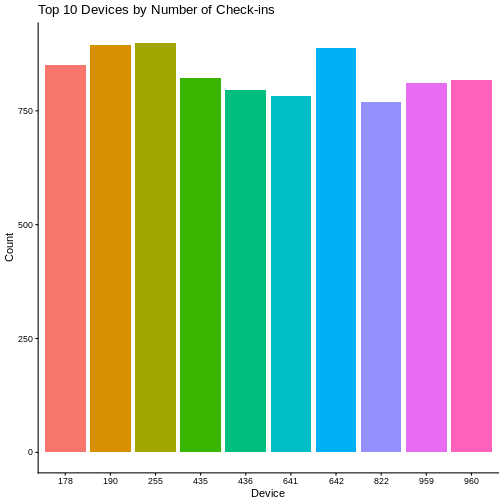
We can also create a caption with the chunk option
fig.cap.
MARKDOWN
```{r chunk-name, fig.cap = "I made this plot while attending an
awesome workshop where I learned a ton of cool stuff!"}
"Insert the code for the plot here"
```
…or, ideally, something more informative.
R
#retrieve top devices
top_devices <- data %>%
  count(device) %>%
  top_n(10, n) %>%
  pull(device)

#create plot
data %>%
  filter(device %in% top_devices) %>%
  mutate(device = str_remove(device, "DEVICE_")) %>%
  ggplot(aes(x = device, fill = device)) +
  geom_bar() +
  labs(title = "Top 10 Devices by Number of Check-ins",
       x = "Device",
       y = "Count")+
  theme_classic() +
  theme(legend.position = "none")
Other Output Options
To convert an R Markdown file to a PDF or Word Document, you can
either click the little triangle next to the Knit
button to get a drop-down menu or put pdf_document or
word_document in the initial header of the file.
For example, to output to a word_document:
---
title: "My Awesome Report"
author: "Emmet Brickowski"
date: ""
output: word_document
---Note: Creating PDF Documents
Creating .pdf documents may require installation of some extra
software. The R package tinytex provides some tools to help
make this process easier for R users. With tinytex
installed, run tinytex::install_tinytex() to install the
required software (you’ll only need to do this once) and then when you
Knit to pdf tinytex will automatically
detect and install any additional LaTeX packages that are needed to
produce the pdf document. For more information, visit the tinytex website.
Note: Inserting Citations into an R Markdown File
It is possible to insert citations into an R Markdown file using the editor toolbar. The editor toolbar includes commonly seen formatting buttons generally seen in text editors (e.g., bold and italic buttons) and is accessible by using the settings drop-down menu (next to the ‘Knit’ drop-down menu) to select ‘Use Visual Editor’. You can also use the keyboard shortcuts Ctrl+Shift+F4 for Windows and Linux or Cmd+Shift+F4 for Mac. From here, clicking ‘Insert’ allows ‘Citation’ to be selected.
Using this menu, you can search various sources for citations and
insert the appropriate citation necessary. For example, searching
‘10.1007/978-3-319-24277-4’ in ‘From DOI’ and inserting will provide the
citation for ggplot2 [@wickham2016]. This will also save the
citation(s) in ‘references.bib’ in the current working directory. Visit
the R
Studio website for more information.
Additionally, you can obtain citation information from relevant
packages by using citation("package").
Resources
- Knitr in a knutshell tutorial
- Dynamic Documents with R and knitr (book)
- R Markdown documentation
- R Markdown cheat sheet
- Getting started with R Markdown
- Markdown tutorial
- R Markdown: The Definitive Guide (book by Rstudio team)
- Reproducible Reporting
- Introducing Bookdown
- R Markdown is a useful language for creating reproducible documents combining text and executable R-code.
- You can specify chunk options to control formatting of the output document.